Getting started
This walks from an empty server to a logged QSO and out the other side — the whole path for whoever is standing the event up.
If someone else runs the server and you just want to operate, you don't need any of the install half: read the Quick start instead.
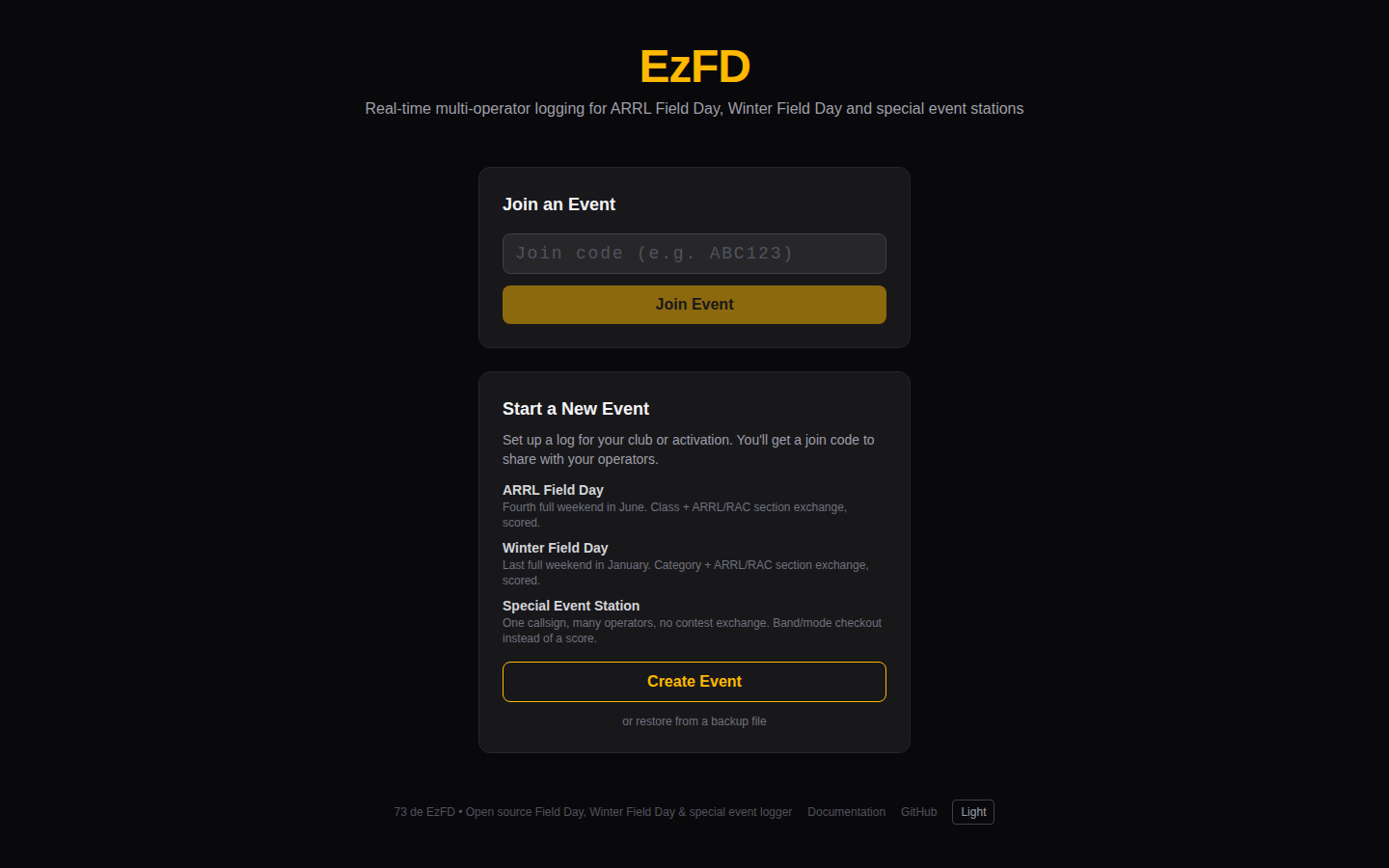
Install the server
You need a Ubuntu or Debian machine with a public hostname pointing at it. A
1 GB VPS is enough; deploy.sh adds swap because next build will otherwise
be OOM-killed at that size.
# git clone https://github.com/nreed97/EzFD.git /opt/ezfd-src
# cd /opt/ezfd-src
# bash deploy.sh
The script asks for a domain and an email for the TLS certificate, then installs Node, PostgreSQL, nginx and certbot, creates the database, applies the schema, builds the app, and registers a systemd service. Full detail in Deployment.
When it finishes, the app is at https://your-domain.
To try it locally instead, see Development.
Create an event
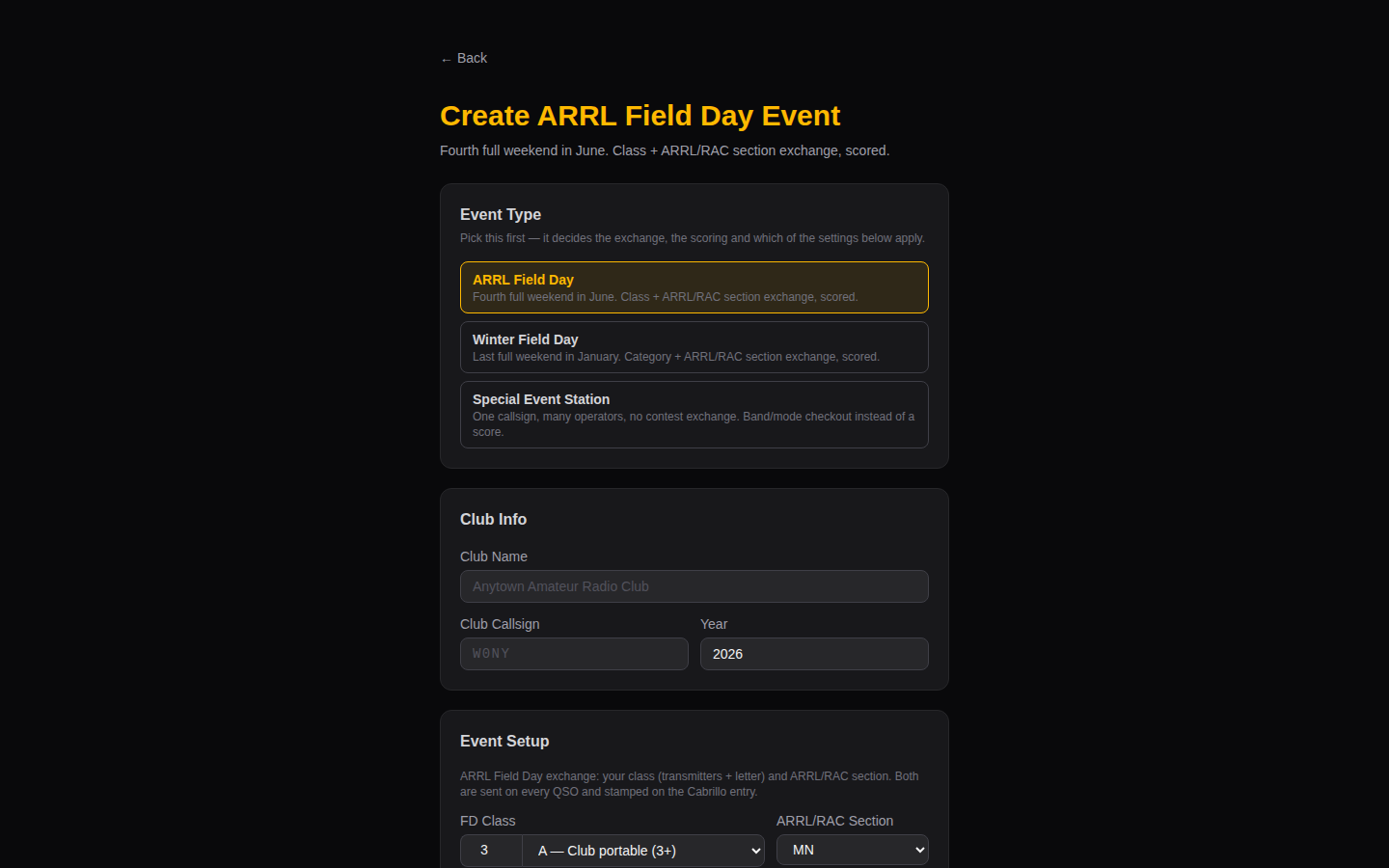
Open the site and choose Create Event. The form branches on the event type you pick, because the three types genuinely differ:
| Type | Use it for | Key fields |
|---|---|---|
| ARRL Field Day | The June contest | Class (e.g. 3A), ARRL section, power category |
| Winter Field Day | The January contest | Class with the WFD letters (H/O/I), section, power |
| Special Event | A callsign activated over a date range, often by operators in different places | Date range, checkout rules, optional section |
Fill in the club or event name and the callsign that will be signed on the air, and for a contest pick your ARRL/RAC section: the list starts empty on purpose, so nobody creates an event in a section that is not theirs by accident. Everything else has a working default.
Optional, and all safe to skip:
- QRZ lookup — a QRZ.com XML subscription auto-fills name and state as operators type a callsign. Credentials are encrypted at rest and shared by every operator on the event, so nobody needs their own.
- Call databases — the N1MM call history file prefills a known station's
class and section;
MASTER.SCPflags whether a callsign is recognised. Both download at event creation and are best-effort: a failed download degrades the hint, never blocks the event. - Admin key — if the server sets
EZFD_ADMIN_KEY, event creation requires it.deploy.shsets one by default on a server with a domain and prints it at the end of the install. See Configuration.
Submitting gives you a six-character join code. That code is how operators get in — there are no accounts.
Joining an event
Operators go to the site, enter the join code, and type their own callsign. That's the whole sign-in. The callsign identifies who logged each QSO; the event's callsign is what goes on the air.
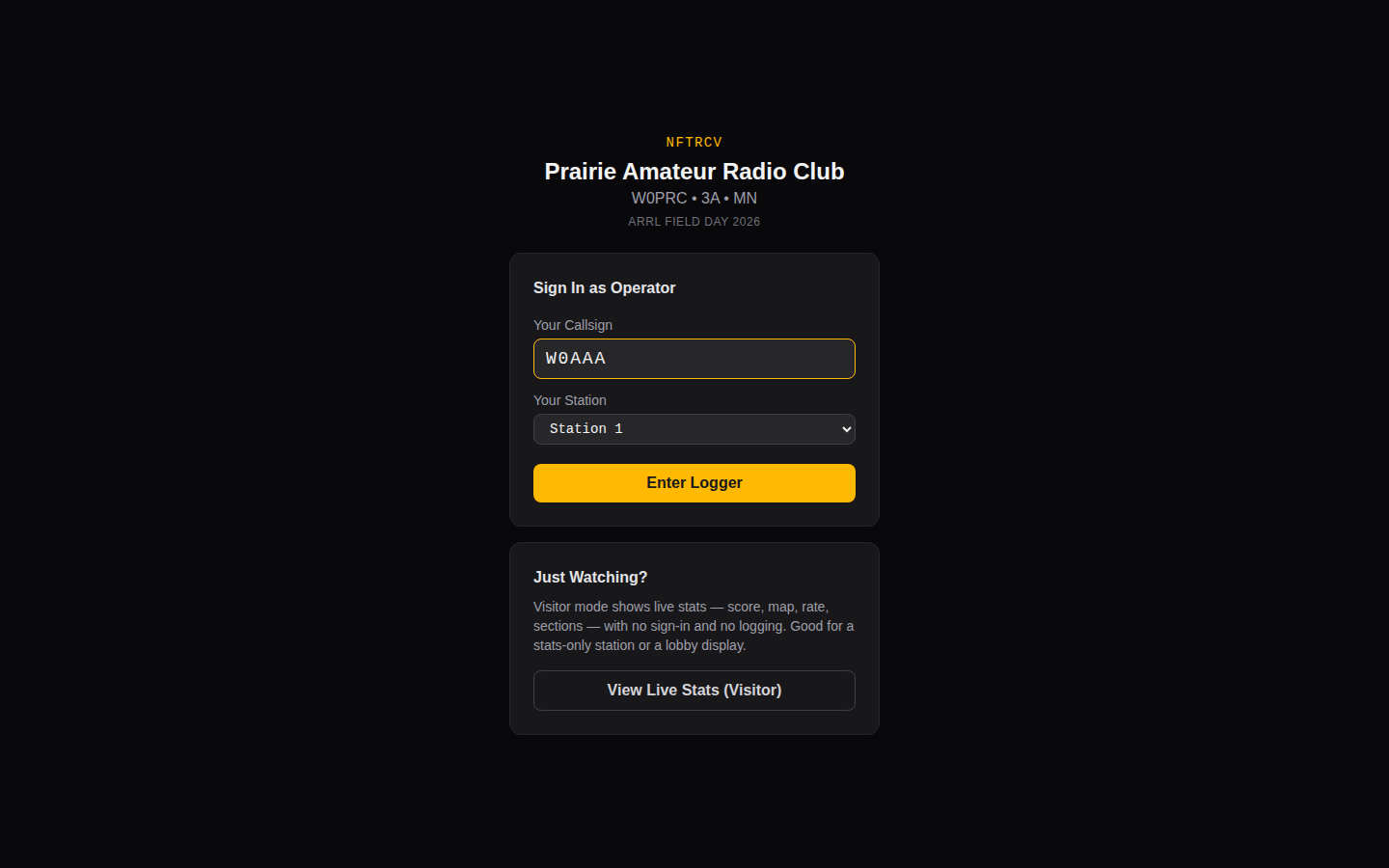
On a multi-transmitter Field Day entry — 2A and up — operators also pick
which station they're at. That number rides on every QSO they log and
becomes the transmitter number in the Cabrillo submission, so getting it right
is the difference between a 3A entry that reads as three transmitters and one
that claims every contact came from the same rig.
On a special event, operators also enter their own grid and state, because a distributed activation has one location per operator rather than one per event. See Special event stations.
There is also Visitor mode — read-only live stats, no callsign, no logging. Good for a screen in the corner of the room.
Log a QSO
The entry form is built for one-handed operation at speed:
- Type the callsign. Press Enter.
- Type the received exchange. Enter moves between fields.
- Enter on the last field logs the QSO and returns focus to the callsign.
Tab from the last field wraps back to the callsign rather than escaping into the rest of the page, so you never have to reach for the mouse.
The QSO appears immediately on every other operator's screen. If the network is down it is written to local storage and syncs when connectivity returns — nothing is lost, and you can keep logging.
Operating covers the rest of the screen: band and mode switching, duplicate handling, band conflicts and the score display.
While it runs
Open the Dashboard on a spare screen. It is read-only and updates live — score, rate, sections worked, and who is on which band.
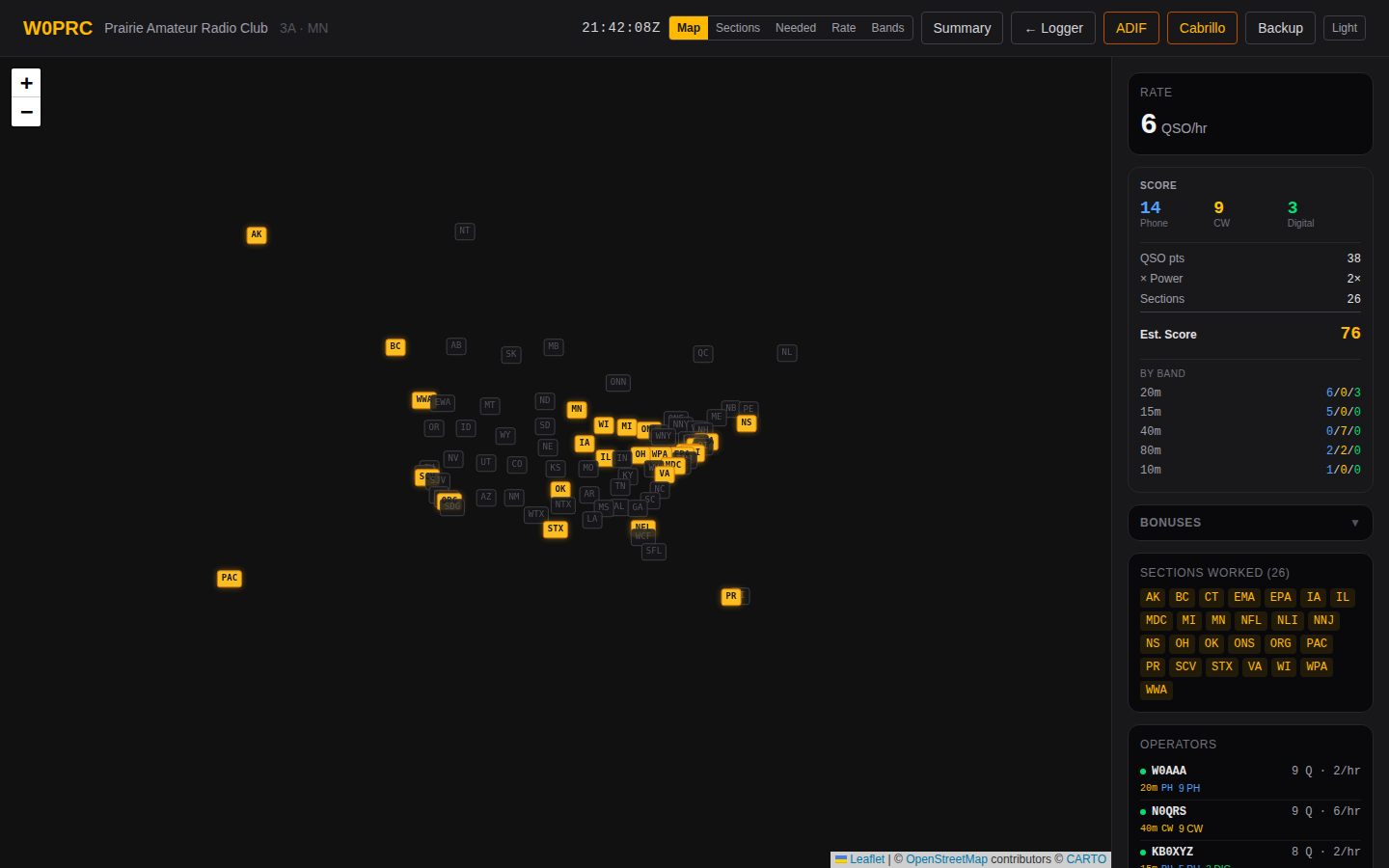
Visitor mode is the same view with no callsign and no ability to log, for a screen visitors can see. It has no export buttons and no operator actions, and Leave in the ☰ menu goes to the home page rather than asking for a callsign.
On a special event the dashboard gets a Checkouts tab instead of the section views: a timeline of who holds which band and mode, over a grid to claim from. See Special event stations.
Finish the event
From the dashboard:
- ADIF — for LoTW, QRZ Logbook, or any log manager.
- Cabrillo — for ARRL contest submission (Field Day and Winter Field Day only; a special event has no contest to submit to).
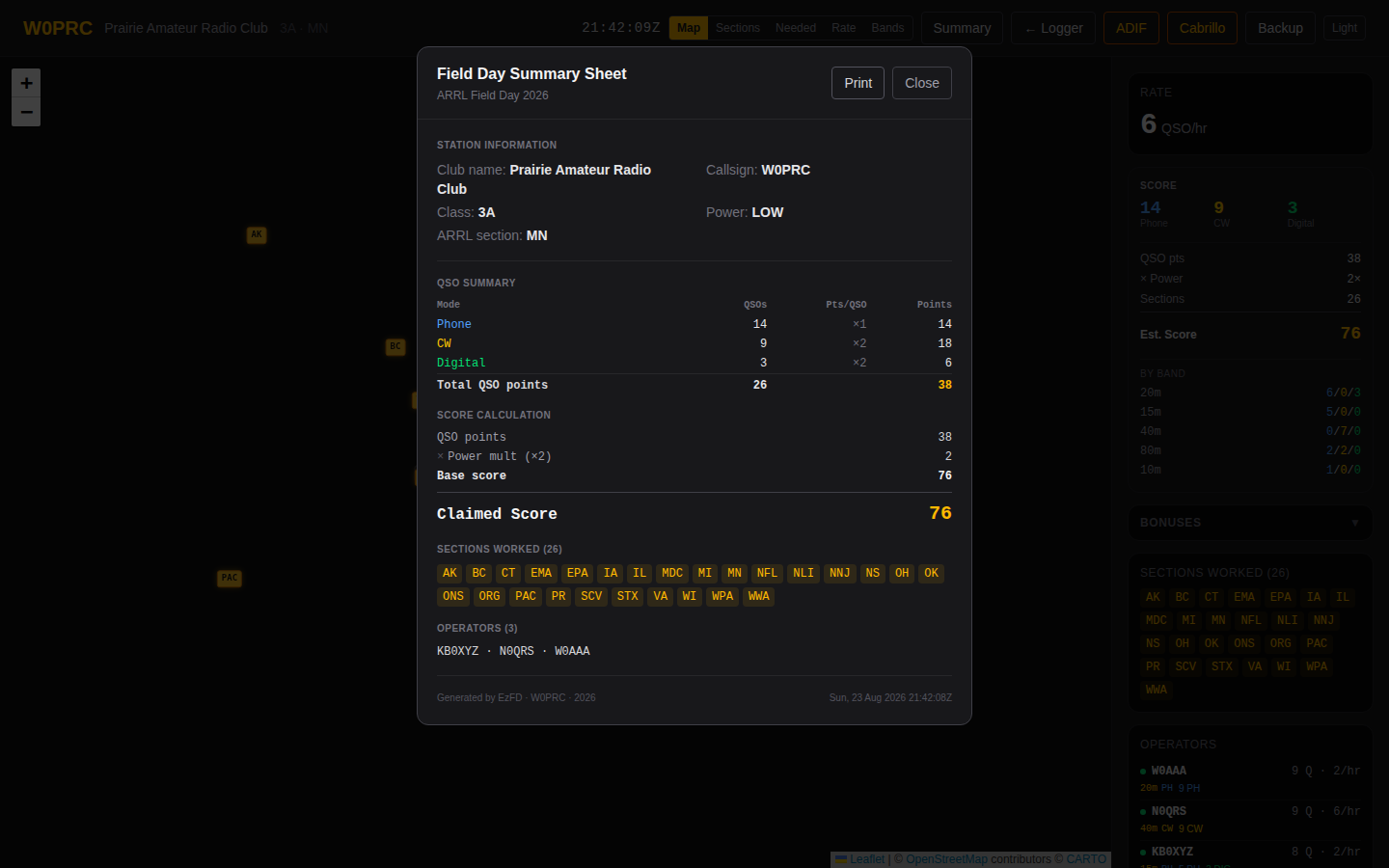
- Summary — a printable worksheet mirroring the ARRL entry form.
Read the summary sheet before you submit anything — it is the worksheet you transcribe onto the ARRL entry, and it shows the score calculation rather than just the total.
Then back the event up before you tear anything down. Full event backup, in the dashboard's ☰ menu, downloads the whole event as one JSON file — every contact, the roster, the checkouts, and the deleted contacts too — and it restores into any EzFD instance from the home page. That is also how you move an event off a field server.
The same backup is available from the server shell, which is the better option if the event is large or the browser is far away:
# bash ezfd-admin.sh # → List / manage events → Export full backup
See Administration.
Next steps
- Connect a radio so band and mode follow the VFO: Rig control
- Auto-log FT8: Digital modes
- Understand scoring before you rely on it: Field Day